<?xml version="1.0" encoding="utf-8"?><feed xmlns="http://www.w3.org/2005/Atom" ><generator uri="https://jekyllrb.com/" version="3.10.0">Jekyll</generator><link href="https://havee.cc/feed.xml" rel="self" type="application/atom+xml" /><link href="https://havee.cc/" rel="alternate" type="text/html" /><updated>2025-12-25T02:11:59+00:00</updated><id>https://havee.cc/feed.xml</id><title type="html">Havee’s snippets</title><subtitle>Personal blog</subtitle><entry><title type="html">IPv6-only VPS 利用 WireGuard 通过双栈 VPS 来访问 IPv4</title><link href="https://havee.cc/ipv4-over-ipv6-via-wireguard.html" rel="alternate" type="text/html" title="IPv6-only VPS 利用 WireGuard 通过双栈 VPS 来访问 IPv4" /><published>2025-07-14T00:00:00+00:00</published><updated>2025-07-14T00:00:00+00:00</updated><id>https://havee.cc/ipv4-over-ipv6-via-wireguard</id><content type="html" xml:base="https://havee.cc/ipv4-over-ipv6-via-wireguard.html"><![CDATA[<p>最近，拿到一台 IPv6-only 的vps，流量是无限的，想着现在 IPv6 是大势所趋，所以检索了下网络，将使用方法记录下来。IPv6-only 的 vps 访问 IPv4 资源，目前大体有 2 种方法。</p>

<ul>
  <li>dns64 + nat64</li>
  <li>IPv6-only VPS 到双栈 VPS 隧道</li>
</ul>

<p>隧道的实现也有很多方法，本文介绍的是 Linux Kernel ≥ 5.6 所支持的 WireGuard。概念介绍掠过，下面是 Debian 环境的方法，其他发行版大同小异。</p>

<div class="language-plaintext highlighter-rouge"><div class="highlight"><pre class="highlight"><code>apt install wireguard-tools --no-install-recommends
</code></pre></div></div>

<p>添加 <code class="language-plaintext highlighter-rouge">--no-install-recommands</code> 参数，是防止安装 realtime 内核，大部分人基本用不到。</p>

<p>进入 WireGuard 配置目录，生成公钥私钥，这一步，服务端客户端都需要操作。</p>

<div class="language-plaintext highlighter-rouge"><div class="highlight"><pre class="highlight"><code>umask 077; wg genkey | tee /etc/wireguard/private.key | wg pubkey &gt; /etc/wireguard/public.key
</code></pre></div></div>

<p>接下来，在服务端配置（双栈VPS），编辑 /etc/wireguard/wg0.conf</p>

<div class="language-plaintext highlighter-rouge"><div class="highlight"><pre class="highlight"><code>[Interface]
PrivateKey = 本地私钥
Address = 10.0.0.1/24
ListenPort = 51820
MTU = 1420

PostUp = nft add table inet wg_filter
PostUp = nft add chain inet wg_filter forward { type filter hook forward priority filter - 50\; }
PostUp = nft add rule inet wg_filter forward iifname "wg0" accept
PostUp = nft add chain inet wg_filter input { type filter hook input priority filter - 50\; }
PostUp = nft add rule inet wg_filter input udp dport 51820 counter accept
PostUp = nft add chain inet wg_filter postrouting { type nat hook postrouting priority srcnat\; }
PostUp = nft add rule inet wg_filter postrouting oifname "eth0" counter masquerade

PostDown = nft flush chain inet wg_filter forward
PostDown = nft flush chain inet wg_filter input
PostDown = nft flush chain inet wg_filter postrouting
PostDown = nft flush table inet wg_filter
PostDown = nft delete table inet wg_filter
# kernel &gt;= 6.3 时，PostDown 只需要下面一条
# PostDown = nft destroy table ip wg_filter

# Client
[Peer]
PublicKey = 客户端公钥
AllowedIPs = 10.0.0.2/32
</code></pre></div></div>

<p>这里通过 nftables 创建 nat 表，这里也可以写 iptables 规则，自己转换下。端口是默认的 51820，也可以改成其他，注意服务端客户端端口一致。</p>

<p>MTU 的值比较重要，会直接影响到网速，这里一个简单的计算方法</p>

<ul>
  <li>IPv4：网卡 MTU - 32 - 8 - 20</li>
  <li>IPv6：网卡 MTU - 32 - 8 - 40</li>
  <li>PPPoE：上面计算结果的 MTU - 8</li>
</ul>

<p>即，大部分网卡 MTU 为 1500 的 vps</p>

<ul>
  <li>IPv4 MTU = 1440</li>
  <li>IPv6 MTU = 1420</li>
</ul>

<p>下面是客户端配置（IPv6-only），编辑 /etc/wireguard/wg0.conf</p>

<div class="language-plaintext highlighter-rouge"><div class="highlight"><pre class="highlight"><code>[Interface]
PrivateKey = 本地私钥
Address = 10.0.0.2/24
MTU = 1420

# 仅 IPv4 流量走 WireGuard 隧道
[Peer]
PublicKey = 服务端公钥
Endpoint = [服务端IPv6]:51820   # 服务端 ipv6:port
AllowedIPs = 0.0.0.0/0          # IPv4 的流量进隧道
PersistentKeepalive = 25
</code></pre></div></div>

<p>最后，服务端客户端都执行</p>

<div class="language-plaintext highlighter-rouge"><div class="highlight"><pre class="highlight"><code>wg-quick up wg0
systemctl enable wg-quick@wg0
</code></pre></div></div>

<p>最后，验证下</p>

<div class="language-plaintext highlighter-rouge"><div class="highlight"><pre class="highlight"><code>curl -4 ifconfig.co
or
curl -Iv https://github.com
</code></pre></div></div>]]></content><author><name></name></author><summary type="html"><![CDATA[最近，拿到一台 IPv6-only 的vps，流量是无限的，想着现在 IPv6 是大势所趋，所以检索了下网络，将使用方法记录下来。IPv6-only 的 vps 访问 IPv4 资源，目前大体有 2 种方法。]]></summary></entry><entry><title type="html">给一些设备下发不同的网关和 DNS</title><link href="https://havee.cc/assign-other-gateway-dns-to-special-devices.html" rel="alternate" type="text/html" title="给一些设备下发不同的网关和 DNS" /><published>2025-04-20T00:00:00+00:00</published><updated>2025-04-20T00:00:00+00:00</updated><id>https://havee.cc/assign-other-gateway-dns-to-special-devices</id><content type="html" xml:base="https://havee.cc/assign-other-gateway-dns-to-special-devices.html"><![CDATA[<p>使用旁路网关设备的同学，应该会有这种场景需求，一些设备，无法设置另外的 DNS/网关，这个时候，一般需要主路由（提供 DHCP 服务的设备） 来做设置。</p>

<h4 id="openwrt">OpenWRT</h4>

<p>直接编辑 /etc/config/dhcp，假设你的旁路网关设备的 IP 地址为 192.168.1.10</p>

<div class="language-plaintext highlighter-rouge"><div class="highlight"><pre class="highlight"><code>...
config tag 'wall'
    option dhcp_option '3,192.168.1.10 6,192.168.1.10'

config host
    option ip '192.168.1.100'
    option mac 'A1:B2:C2:D4:E5:F6'
    option tag 'wall'
...
</code></pre></div></div>

<p>随后重启 Dnsmasq 即可</p>

<div class="language-plaintext highlighter-rouge"><div class="highlight"><pre class="highlight"><code>service dnsmasq restart
</code></pre></div></div>

<h4 id="梅林固件">梅林固件</h4>

<p>梅林的设置与 OpenWRT 略有不同，新建文件 /jffs/configs/dnsmasq.conf.add，此文件的配置项，会覆盖默认项</p>

<div class="language-plaintext highlighter-rouge"><div class="highlight"><pre class="highlight"><code>mkdir -p /jffs/configs/
touch /jffs/configs/dnsmasq.conf.add
</code></pre></div></div>

<p>然后对特殊设备 MAC 下发不同的网关/DNS</p>

<div class="language-plaintext highlighter-rouge"><div class="highlight"><pre class="highlight"><code>dhcp-option=tag:wall,option:router,192.168.1.10
dhcp-option=tag:wall,option:dns-server,192.168.1.10
dhcp-mac=set:wall,A1:B2:C3:D4:E5:F6
</code></pre></div></div>

<p>重启 Dnsmasq</p>

<div class="language-plaintext highlighter-rouge"><div class="highlight"><pre class="highlight"><code>killall dnsmasq
rm /var/lib/misc/dnsmasq.leases
service restart_dnsmasq
</code></pre></div></div>

<h4 id="ipv6">IPv6</h4>

<p>现在运营商已经大面积铺开 IPv6，所以针对 IPv6 也得做一些设置。默认情况下你的设备向网关提交解析请求的时候，网关会返回 v4 和 v6 地址</p>

<p>我用 host 命令来查询，譬如我向光猫查询百度域名的解析地址</p>

<div class="language-plaintext highlighter-rouge"><div class="highlight"><pre class="highlight"><code>$ host www.baidu.com 192.168.1.1
Using domain server:
Name: 192.168.1.1
Address: 192.168.1.1#53
Aliases:

www.baidu.com has address 36.152.44.93
www.baidu.com has address 36.152.44.132
www.baidu.com is an alias for www.a.shifen.com.
www.a.shifen.com has IPv6 address 2409:8c20:6:1794:0:ff:b080:87f0
www.a.shifen.com has IPv6 address 2409:8c20:6:123c:0:ff:b0f6:b2d
www.baidu.com is an alias for www.a.shifen.com.
</code></pre></div></div>

<p>将 v6 地址的 DNS 留空，或设置为旁路网关设备的地址。这样设备会按照上面的配置去分别获取对应 tag 的 DNS。</p>

<p>梅林的话，会默认分配运营商v6 dns，需要先留空覆盖，你也可以添加旁路网关设备的 v6 link local 地址作为 DNS，编辑 /jffs/configs/dnsmasq.conf.add</p>

<div class="language-plaintext highlighter-rouge"><div class="highlight"><pre class="highlight"><code>dhcp-option=lan,option6:23              # 留空运营商默认的 v6 DNS
dhcp-option=tag:wall,option6:23,[fe80::c810:f3a1:2d2a:eff1]    # 可选
</code></pre></div></div>

<p>openwrt 的话，同样，留空 ipv6 DNS</p>

<div class="language-plaintext highlighter-rouge"><div class="highlight"><pre class="highlight"><code>config dhcp 'lan'
    ...
    option dns_service '0'
    ...
</code></pre></div></div>

<p>效果：</p>

<ul>
  <li>普通设备，通过主路由 192.168.1.1 解析 v4 v6 地址</li>
  <li>tag:wall 的设备，通过 旁路设备 IP 192.168.1.10 或者其 v6 link local 地址来解析 v4 v6 地址</li>
</ul>]]></content><author><name></name></author><summary type="html"><![CDATA[使用旁路网关设备的同学，应该会有这种场景需求，一些设备，无法设置另外的 DNS/网关，这个时候，一般需要主路由（提供 DHCP 服务的设备） 来做设置。]]></summary></entry><entry><title type="html">Docker 中运行 OpenWrt</title><link href="https://havee.cc/openwrt-in-a-docker-container.html" rel="alternate" type="text/html" title="Docker 中运行 OpenWrt" /><published>2024-02-23T00:00:00+00:00</published><updated>2024-02-23T00:00:00+00:00</updated><id>https://havee.cc/openwrt-in-a-docker-container</id><content type="html" xml:base="https://havee.cc/openwrt-in-a-docker-container.html"><![CDATA[<p>在尝试过各种 x86/arm 路由，各种开发版，各种盒子。一圈下来，最后还是回到 OneCloud (玩客云)刷 Armbian，其内安装 Docker 跑 OpenWrt 作旁路网关为最终方案（已弃用该方案，转而使用 armbian + nftables + xxx）。</p>

<p>作为家用，性能足够，价格也足够便宜，到写这篇文章时，海鲜市场的价格大概 30 块左右包邮。</p>

<p>如何短接触点刷机，如何刷 Armbian， 略过不表。这篇文章只是用来记录，在 Armbian (Debian) 下将 OpenWrt 运行起来的流水账。</p>

<h3 id="安装-docker">安装 Docker</h3>

<p>完全照着 Docker 官方文档来，只不过在最后镜像这一块替换成国内的源。</p>

<p>卸载掉 Debian 社区版 Docker</p>

<div class="language-plaintext highlighter-rouge"><div class="highlight"><pre class="highlight"><code>for pkg in docker.io docker-doc docker-compose podman-docker containerd runc; do sudo apt-get remove $pkg; done
</code></pre></div></div>

<p>添加 Docker 的官方 GPG key:</p>

<div class="language-plaintext highlighter-rouge"><div class="highlight"><pre class="highlight"><code>sudo apt-get update
sudo apt-get install ca-certificates curl
sudo install -m 0755 -d /etc/apt/keyrings
sudo curl -fsSL https://download.docker.com/linux/debian/gpg -o /etc/apt/keyrings/docker.asc
sudo chmod a+r /etc/apt/keyrings/docker.asc
</code></pre></div></div>

<p>添加 apt 源，这里我换成了国内上交大的源</p>

<div class="language-plaintext highlighter-rouge"><div class="highlight"><pre class="highlight"><code>echo \
"deb [arch=$(dpkg --print-architecture) signed-by=/etc/apt/keyrings/docker.asc] \
https://mirror.sjtu.edu.cn/docker-ce/linux/debian \
$(. /etc/os-release &amp;&amp; echo "$VERSION_CODENAME") stable" | \
sudo tee /etc/apt/sources.list.d/docker.list &gt; /dev/null

sudo apt-get update
</code></pre></div></div>

<p>接下来安装 Docker</p>

<div class="language-plaintext highlighter-rouge"><div class="highlight"><pre class="highlight"><code>sudo apt-get install docker-ce docker-ce-cli containerd.io docker-buildx-plugin docker-compose-plugin
sudo docker info
</code></pre></div></div>

<p>我需要打开 Docker IPv6，以及替换 Docker 镜像源为国内上交大源。编辑文件 /etc/docker/daemon.json，没有的话创建它。</p>

<div class="language-plaintext highlighter-rouge"><div class="highlight"><pre class="highlight"><code>{
    "experimental": true,
    "ip6tables": true,
    "registry-mirrors": [
        "https://docker.mirrors.sjtug.sjtu.edu.cn"
    ]
}
</code></pre></div></div>

<p>重启下服务</p>

<div class="language-plaintext highlighter-rouge"><div class="highlight"><pre class="highlight"><code>sudo systemctl daemon-reload &amp;&amp; sudo systemctl restart docker.service
</code></pre></div></div>

<p>至此，Docker 准备工作完成。</p>

<h4 id="ipv6-转发">IPv6 转发</h4>

<p>内核参数也需要打开 IPv6 的转发</p>

<p>临时生效</p>

<div class="language-plaintext highlighter-rouge"><div class="highlight"><pre class="highlight"><code>for nic in default eth0 all; do sudo sysctl -w net.ipv6.conf.$nic.forwarding=1; sudo sysctl -w net.ipv6.conf.$nic.accept_ra=2; done
</code></pre></div></div>

<p>持久生效，编辑 /etc/sysctl.conf</p>

<div class="language-plaintext highlighter-rouge"><div class="highlight"><pre class="highlight"><code>...
net.ipv6.conf.default.forwarding = 1
net.ipv6.conf.all.forwarding = 1
# Setting accept_ra to 2 allows RAs to be accepted even when forwarding = 1.
net.ipv6.conf.default.accept_ra = 2
net.ipv6.conf.all.accept_ra = 2
...
</code></pre></div></div>

<h3 id="nic-promiscuous-模式">NIC promiscuous 模式</h3>

<p>临时打开的方式</p>

<div class="language-plaintext highlighter-rouge"><div class="highlight"><pre class="highlight"><code>sudo ip link set dev eth0 promisc on
</code></pre></div></div>

<p>永久打开的方式，如果你的网络管理器为 NetworkManager 的话，编辑 /etc/NetworkManager/dispatcher.d/50-promisc</p>

<div class="language-plaintext highlighter-rouge"><div class="highlight"><pre class="highlight"><code>#!/usr/bin/env bash
#
case "$2" in
    up)
        if [[ "$1" = "eth0" ]] || [[ "$1" = "eth1" ]]; then
        ip link set dev $1 promisc on
        fi
        ;;
esac
</code></pre></div></div>

<p>加上可执行权限</p>

<div class="language-plaintext highlighter-rouge"><div class="highlight"><pre class="highlight"><code>sudo chmod +x /etc/NetworkManager/dispatcher.d/50-promisc
</code></pre></div></div>

<p>systemd 管理网络的可以看这里：<a href="/enable-promiscuous-mode-on-nics.html">打开网卡的 promiscuous 模式</a></p>

<p>至此，环境配置工作完成。</p>

<h3 id="制作镜像">制作镜像</h3>

<p>直接去 github 上以 <strong>onecloud openwrt</strong> 为关键词去搜索，总是会找到你心仪的固件，如果没有，那就自己编译一个吧，这里略过不表。这里默认你已经下载到固件，名为 openwrt-meson-meson8b-thunder-onecloud-ext4-sdcard.img.gz</p>

<h4 id="挂载-img">挂载 img</h4>

<div class="language-plaintext highlighter-rouge"><div class="highlight"><pre class="highlight"><code>gzip -d openwrt-meson-meson8b-thunder-onecloud-ext4-sdcard.img.gz
sudo losetup -fP openwrt-meson-meson8b-thunder-onecloud-ext4-sdcard.img
# 确认下是哪个 loop 设备
sudo losetup -a
# 譬如是loop0，准备挂载吧
sudo mkdir -p /mnt/img; sudo mount /dev/loop0p2 /mnt/img
</code></pre></div></div>

<h4 id="复制打包-rootfs">复制，打包 rootfs</h4>

<div class="language-plaintext highlighter-rouge"><div class="highlight"><pre class="highlight"><code>sudo mkdir -p /mnt/openwrt; sudo cp -rpf /mnt/img/* /mnt/openwrt/
sudo tar cvf /mnt/rootfs.tar -C /mnt/openwrt .
</code></pre></div></div>

<h4 id="导入-docker-镜像">导入 Docker 镜像</h4>

<div class="language-plaintext highlighter-rouge"><div class="highlight"><pre class="highlight"><code>sudo docker import /mnt/rootfs.tar openwrt:onecloud
sudo docker images -a
</code></pre></div></div>

<h4 id="收尾">收尾</h4>

<p>最后终归要分离挂载与loop</p>

<div class="language-plaintext highlighter-rouge"><div class="highlight"><pre class="highlight"><code>sudo umount /mnt/img
sudo losetup -d /dev/loop0
</code></pre></div></div>

<p>至此，镜像已经准备好。</p>

<h3 id="容器测试">容器测试</h3>

<h4 id="容器网络">容器网络</h4>

<p>下面终于开始进入最终环节了，让我们先创建个 macvlan 网络，这里我打开 ipv6 支持</p>

<div class="language-plaintext highlighter-rouge"><div class="highlight"><pre class="highlight"><code>sudo docker network create -d macvlan --subnet=192.168.1.0/24 --gateway=192.168.1.1 --ipv6 --subnet=fd00::/80 -o parent=eth0 openwrt_macvlan
</code></pre></div></div>

<p>可以查看是否创建正确</p>

<div class="language-plaintext highlighter-rouge"><div class="highlight"><pre class="highlight"><code>sudo docker network inspect openwrt_macvlan
</code></pre></div></div>

<h4 id="创建容器">创建容器</h4>

<div class="language-plaintext highlighter-rouge"><div class="highlight"><pre class="highlight"><code>sudo docker run -d --restart=on-failure:3 --name openwrt --network openwrt_macvlan --cap-add=NET_ADMIN --device=/dev/net/tun openwrt:onecloud /sbin/init
</code></pre></div></div>

<p>有些固件，带某功能的，可能需要 privileged 模式</p>

<div class="language-plaintext highlighter-rouge"><div class="highlight"><pre class="highlight"><code>sudo docker run -d --restart=on-failure:3 --name openwrt --network openwrt_macvlan --privileged --device=/dev/net/tun openwrt:onecloud /sbin/init
</code></pre></div></div>

<h4 id="容器设置">容器设置</h4>

<p>根据固件获取 ip 方式的不同，需要进容器做一些设置，譬如 IPv4 IPv6。</p>

<p>先 attach 容器</p>

<div class="language-plaintext highlighter-rouge"><div class="highlight"><pre class="highlight"><code>sudo docker exec -it openwrt sh
</code></pre></div></div>

<p>然后编辑容器内的 /etc/config/network</p>

<div class="language-plaintext highlighter-rouge"><div class="highlight"><pre class="highlight"><code>...
config interface 'lan'
	option device 'eth0'
	option proto 'static'
	option ipaddr '192.168.1.200'
	option netmask '255.255.255.0'
	option gateway '192.168.1.1'
	list dns '119.29.29.29'
	list dns '223.5.5.5'
	option delegate '0'
...
config interface 'wan6'
	option proto 'dhcpv6'
	option device 'eth0'
	option reqaddress 'try'
	option reqprefix 'no'
</code></pre></div></div>

<p>随后可以打开网页控制台，做进一步设置。</p>

<h4 id="docker-compose">docker compose</h4>

<p>你也可以用 docker compose 方式，创建 docker-compose.yml，这样前面可以不用手动创建网络，与运行容器了。</p>

<div class="language-plaintext highlighter-rouge"><div class="highlight"><pre class="highlight"><code>services:
    openwrt:
        image: openwrt:onecloud
        container_name: openwrt
        hostname: openwrt
        networks:
            openwrt_macvlan:
networks:
    openwrt_macvlan:
        driver: macvlan
        driver_opts:
            parent: eth0
        enable_ipv6: true
        ipam:
            driver: default
            config:
                - subnet: 192.168.1.0/24
                  gateway: 192.168.1.1
                - subnet: fd00::/80
</code></pre></div></div>

<p>如果想使用前面手动创建的网络，那么可以这样</p>

<div class="language-plaintext highlighter-rouge"><div class="highlight"><pre class="highlight"><code>services:
    openwrt:
        image: openwrt:onecloud
        container_name: openwrt
        hostname: openwrt
        networks:
            external:
networks:
    external:
        name: openwrt_macvlan
        external: true
</code></pre></div></div>

<p>运行一下看看</p>

<div class="language-plaintext highlighter-rouge"><div class="highlight"><pre class="highlight"><code>sudo docker compose up -d
</code></pre></div></div>

<h4 id="保存容器">保存容器</h4>

<p>稳定几天后，为了下一次不再重复设置，将当前的容器存储为镜像</p>

<div class="language-plaintext highlighter-rouge"><div class="highlight"><pre class="highlight"><code>sudo docker ps -a
sudo docker commit xxxxxxxxxxxx openwrt:onecloud
</code></pre></div></div>

<h4 id="备份镜像">备份镜像</h4>

<div class="language-plaintext highlighter-rouge"><div class="highlight"><pre class="highlight"><code>sudo docker save openwrt:onecloud -o rootfs-onecloud.tar
</code></pre></div></div>

<p>参考：</p>

<ul>
  <li><a href="https://docs.docker.com/engine/install/debian/">https://docs.docker.com/engine/install/debian/</a></li>
  <li><a href="https://docs.docker.com/config/daemon/ipv6/">https://docs.docker.com/config/daemon/ipv6/</a></li>
  <li><a href="https://openwrt.org/docs/guide-user/virtualization/docker_openwrt_image">https://openwrt.org/docs/guide-user/virtualization/docker_openwrt_image</a></li>
</ul>]]></content><author><name></name></author><summary type="html"><![CDATA[在尝试过各种 x86/arm 路由，各种开发版，各种盒子。一圈下来，最后还是回到 OneCloud (玩客云)刷 Armbian，其内安装 Docker 跑 OpenWrt 作旁路网关为最终方案（已弃用该方案，转而使用 armbian + nftables + xxx）。]]></summary></entry><entry><title type="html">IPv6 隐私扩展</title><link href="https://havee.cc/ipv6-privacy-extensions.html" rel="alternate" type="text/html" title="IPv6 隐私扩展" /><published>2023-02-22T00:00:00+00:00</published><updated>2023-02-22T00:00:00+00:00</updated><id>https://havee.cc/ipv6-privacy-extensions</id><content type="html" xml:base="https://havee.cc/ipv6-privacy-extensions.html"><![CDATA[<p>DHCPv6 方式管理 IPv6 不在本文讨论之列，这篇文章主要是介绍通过 SLAAC (Stateless Address Autoconfiguration) 来生成 IPv6 后，打开 IPv6 隐私扩展。以及如何生成稳定的隐私地址。</p>

<ul>
  <li>隐私扩展 [RFC 4941]<sup id="fnref:1" role="doc-noteref"><a href="#fn:1" class="footnote" rel="footnote">1</a></sup> 通过 “隐私地址” 允许出站连接使用临时的、随机生成的地址（每隔几个小时/几天刷新一次地址）。</li>
  <li>稳定私有地址 [RFC 7217]<sup id="fnref:2" role="doc-noteref"><a href="#fn:2" class="footnote" rel="footnote">2</a></sup> 允许从不透明哈希值来生成私有静态地址。</li>
</ul>

<p>未打开 IPv6 隐私扩展前，IPv6 地址是通过设备 MAC 地址来作为 EUI64 来生成的。 方法是 IPv6 前缀 + MAC 地址(中间插入FFFE)。</p>

<p>譬如 IPv6 前缀 2409:11:22:33，mac地址是 44:55:66:77:88:99，那么生成的 IPv6 为 2409:11:22:33:4455:66ff:fe77:8899</p>

<p>这对服务器而言是无所谓的，但是对个人用户来说，有隐私方面的问题。所以我们需要打开 IPv6 隐私扩展，来生成一个随机的临时 v6 地址，且远程连接时优先选用这个临时 v6 地址。</p>

<h3 id="一-隐私扩展-rfc-4941">一. 隐私扩展 (RFC 4941)</h3>

<h4 id="1-内核参数">1. 内核参数</h4>

<p>首先将内核参数打开，尽管 systemd-networkd 默认选择不遵守内核参数。</p>

<p>编辑 /etc/sysctl.conf，加入如下参数</p>

<div class="language-plaintext highlighter-rouge"><div class="highlight"><pre class="highlight"><code># Enable Privacy Extensions
net.ipv6.conf.all.use_tempaddr = 2
net.ipv6.conf.default.use_tempaddr = 2
</code></pre></div></div>

<p>重启后即可生效，如果只想某个网口开启，则</p>

<div class="language-plaintext highlighter-rouge"><div class="highlight"><pre class="highlight"><code># Enable Privacy Extensions for eth1
net.ipv6.conf.eth1.use_tempaddr = 2
</code></pre></div></div>

<p>同样重启生效。想要立即生效的话，打开终端，用root权限运行</p>

<div class="language-plaintext highlighter-rouge"><div class="highlight"><pre class="highlight"><code>sysctl -w net.ipv6.conf.eth1.use_tempaddr=2
</code></pre></div></div>

<h4 id="2-networkmanager">2. NetworkManager</h4>

<p>默认配置下，NetworkManager 会根据内核参数来决定是否开启隐私扩展。如果你已经做了内核参数哪一步，那么这里可以省略。如果不想动内核参数，那么你需要告诉 NetworkManager 来明确启用 IPv6 隐私扩展。</p>

<p>全局生效，编辑 /etc/NetworkManager/conf.d/v6-privacy.conf</p>

<div class="language-plaintext highlighter-rouge"><div class="highlight"><pre class="highlight"><code>[connection]
ipv6.ip6-privacy=2
</code></pre></div></div>

<p>单独接口生效的话，编辑对应的连接文件，在 /etc/NetworkManager/system-connections/ 下面，譬如编辑 ‘Wired connection 1.nmconnection’ 文件</p>

<div class="language-plaintext highlighter-rouge"><div class="highlight"><pre class="highlight"><code>...
[ipv6]
ip6-privacy=2
...
</code></pre></div></div>

<h4 id="3-systemd-networkd">3. systemd-networkd</h4>

<p>前面说过，systemd-network 的 IPv6 隐私扩展，默认选项不遵守内核参数。</p>

<blockquote>
  <p>IPv6PrivacyExtensions=</p>

  <p>Configures use of stateless temporary addresses that change over time (see RFC 4941, Privacy Extensions for Stateless Address Autoconfiguration in IPv6). Takes a boolean or the special values “prefer-public” and “kernel”. When true, enables the privacy extensions and prefers temporary addresses over public addresses. When “prefer-public”, enables the privacy extensions, but prefers public addresses over temporary addresses. When false, the privacy extensions remain disabled. When “kernel”, the kernel’s default setting will be left in place. When unspecified, the value specified in the same setting in networkd.conf(5), which defaults to “no”, will be used.</p>
</blockquote>

<p>如果未设置，那其默认为 no，即关闭 IPv6 隐私扩展，可用选项为 true / false / prefer-public / kernel。</p>

<ul>
  <li>true:            打开 IPv6 隐私扩展，优先使用临时地址</li>
  <li>false:           关闭 IPv6 隐私扩展</li>
  <li>prefer-public:   打开 IPv6 隐私扩展，但优先使用 Public 地址</li>
  <li>kernel:          根据内核参数来决定</li>
</ul>

<p>如果你前面没有设置过 IPv6 隐私扩展相关的内核参数，那么这里可以选择 true。否则可以选择 true / kernel。</p>

<p>全局模式，编辑 /etc/systemd/networkd.conf</p>

<div class="language-plaintext highlighter-rouge"><div class="highlight"><pre class="highlight"><code>[network]
...
IPv6PrivacyExtensions=kernel
</code></pre></div></div>

<p>针对单独的接口生效，编辑 /etc/systemd/network/eth0.network</p>

<div class="language-plaintext highlighter-rouge"><div class="highlight"><pre class="highlight"><code>[network]
...
IPv6PrivacyExtensions=kernel
</code></pre></div></div>

<h3 id="二-稳定的私有地址-rfc-7217">二. 稳定的私有地址 (RFC 7217)</h3>

<h4 id="1-内核参数-1">1. 内核参数</h4>

<p>让内核生成一个密钥</p>

<div class="language-plaintext highlighter-rouge"><div class="highlight"><pre class="highlight"><code>sysctl net.ipv6.conf.wlan0.addr_gen_mode=3
</code></pre></div></div>

<p>内核会生成 128 位密钥，通过如下命令输出</p>

<div class="language-plaintext highlighter-rouge"><div class="highlight"><pre class="highlight"><code>sysctl net.ipv6.conf.wlan0.stable_secret
net.ipv6.conf.wlan0.stable_secret = 2f2e:bfe6:8abc:dec1:fff5:fed0:eecd:6ee3
</code></pre></div></div>

<p>持久化密钥，写入 /etc/sysctl.d/40-ipv6.conf</p>

<div class="language-plaintext highlighter-rouge"><div class="highlight"><pre class="highlight"><code># Enable IPv6 stable privacy mode
net.ipv6.conf.wlan0.stable_secret = 2f2e:bfe6:8abc:dec1:fff5:fed0:eecd:6ee3
net.ipv6.conf.wlan0.addr_gen_mode = 2
</code></pre></div></div>

<h4 id="2-networkmanager-1">2. NetworkManager</h4>

<p>NetworkManager 无视内核参数，不过 NetworkManager 默认使用稳定的私有地址，你当然可以修改</p>

<div class="language-plaintext highlighter-rouge"><div class="highlight"><pre class="highlight"><code>nmcli con modify "ProfileName" ipv6.addr-gen-mode eui64
nmcli con modify "ProfileName" ipv6.addr-gen-mode stable-privacy
</code></pre></div></div>

<p>“ProfileName” 为目录 /etc/NetworkManager/system-connections/ 下面去掉后缀的文件名</p>

<h4 id="3-systemd-networkd-1">3. systemd-networkd</h4>

<p>比较简单，编辑 /etc/systemd/network/wlan0.network</p>

<div class="language-plaintext highlighter-rouge"><div class="highlight"><pre class="highlight"><code>[IPv6AcceptRA]
Token=prefixstable
</code></pre></div></div>

<p>你也可以让你网卡的链接地址使用稳定的私有地址</p>

<div class="language-plaintext highlighter-rouge"><div class="highlight"><pre class="highlight"><code>[Network]
...
IPv6LinkLocalAddressGenerationMode=stable-privacy
</code></pre></div></div>

<h3 id="三-ipv6-ra-报文">三. IPv6 RA 报文</h3>

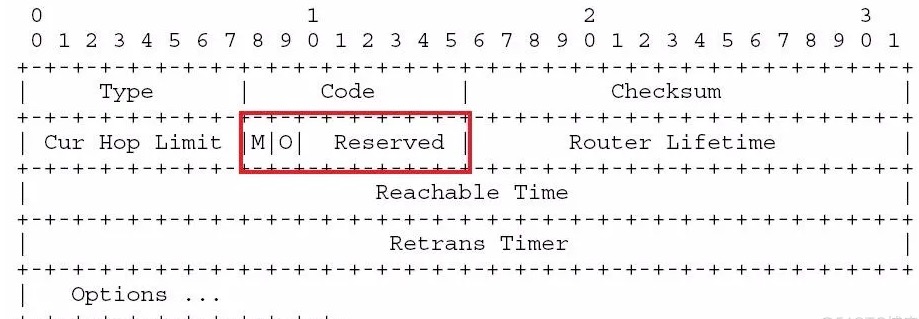
<p><img src="/cdn/images/2023/02/ipv6-ra.jpg" alt="IPv6 RA" /></p>

<ul>
  <li>M 字段：管理地址配置标识（Managed Adress Configuration）
    <ul>
      <li>M = 0，标识无状态地址分配，通过无状态协议(如ND)取得IPv6地址</li>
      <li>M = 1，标识有状态地址分配，通过有状态协议(如DHCPv6)获得IPv6地址</li>
    </ul>
  </li>
  <li>O 字段：其他有状态配置标识（Other Configuration）
    <ul>
      <li>O = 0，通过无状态协议(如ND)获取除地址外的其他配置信息</li>
      <li>O = 1，通过有状态协议(如DHCPv6)获取除地址外的其他配置信息，如dns sip</li>
    </ul>
  </li>
</ul>

<p>协议规定，若 M = 1，则 O = 1，否则无意义。</p>

<p>M O 不同组合对应的意义</p>

<table>
  <tbody>
    <tr>
      <td>11</td>
      <td>Sateful DHCPv6</td>
      <td>地址和 DNS 都从 DHCPv6 服务器取得</td>
    </tr>
    <tr>
      <td>01</td>
      <td>Stateless DHCPv6</td>
      <td>地址使用 RA 广播的 prefix+EUI-64 计算出的接口地址，DNS 从 DHCPv6 取得</td>
    </tr>
    <tr>
      <td>00</td>
      <td>Stateless Autoconfiguration</td>
      <td>完全的 stateless，仅地址使用 RA 广播的 prefix+EUI-64 计算出的接口地址</td>
    </tr>
  </tbody>
</table>

<p>参考：</p>

<ul>
  <li><a href="https://developer-old.gnome.org/NetworkManager/stable/NetworkManager.conf.html">https://developer-old.gnome.org/NetworkManager/stable/NetworkManager.conf.html</a></li>
  <li><a href="https://www.freedesktop.org/software/systemd/man/latest/networkd.conf.html">https://www.freedesktop.org/software/systemd/man/latest/networkd.conf.html</a></li>
  <li><a href="https://www.freedesktop.org/software/systemd/man/latest/systemd.network.html">https://www.freedesktop.org/software/systemd/man/latest/systemd.network.html</a></li>
</ul>

<div class="footnotes" role="doc-endnotes">
  <ol>
    <li id="fn:1" role="doc-endnote">
      <p><a href="https://www.rfc-editor.org/rfc/rfc4941">https://www.rfc-editor.org/rfc/rfc4941</a> <a href="#fnref:1" class="reversefootnote" role="doc-backlink">&#8617;</a></p>
    </li>
    <li id="fn:2" role="doc-endnote">
      <p><a href="https://www.rfc-editor.org/rfc/rfc7217">https://www.rfc-editor.org/rfc/rfc7217</a> <a href="#fnref:2" class="reversefootnote" role="doc-backlink">&#8617;</a></p>
    </li>
  </ol>
</div>]]></content><author><name></name></author><summary type="html"><![CDATA[DHCPv6 方式管理 IPv6 不在本文讨论之列，这篇文章主要是介绍通过 SLAAC (Stateless Address Autoconfiguration) 来生成 IPv6 后，打开 IPv6 隐私扩展。以及如何生成稳定的隐私地址。]]></summary></entry><entry><title type="html">打开网卡的 promiscuous 模式</title><link href="https://havee.cc/enable-promiscuous-mode-on-nics.html" rel="alternate" type="text/html" title="打开网卡的 promiscuous 模式" /><published>2023-02-18T00:00:00+00:00</published><updated>2023-02-18T00:00:00+00:00</updated><id>https://havee.cc/enable-promiscuous-mode-on-nics</id><content type="html" xml:base="https://havee.cc/enable-promiscuous-mode-on-nics.html"><![CDATA[<p>如果需要桥接网络设备，或者尝试 docker 的 macvlan 网络，那么势必要打开网卡的 promiscuous 模式。</p>

<p>首先，最近的 linux 发行版都支持用命令行临时打开。</p>

<div class="language-plaintext highlighter-rouge"><div class="highlight"><pre class="highlight"><code>sudo ip link set dev eth0 promisc on
</code></pre></div></div>

<p>只是绝大多数时候我们需要永久打开 promiscuous 模式。那么我们可能根据自己系统选择合适的方法。</p>

<h4 id="一-networkmanager">一. NetworkManager</h4>

<p>如果你的网络管理操作是 NetworkManager，那么可以试试 NetworkManager-dispatcher，根据你自己的发行版，自行安装 NetworkManager-dispatcher，随后，创建 /etc/NetworkManager/dispatcher.d/60-promisc，根据你自己的网卡名，填入如下内容：</p>

<div class="language-plaintext highlighter-rouge"><div class="highlight"><pre class="highlight"><code>#! /usr/bin/env bash
case "$2" in
    up)
        if [[ "$1" = "eth0" ]] || [[ "$1" = "eth1" ]]; then
            ip link set dev $1 promisc on
        fi
        ;;
esac
</code></pre></div></div>

<p>随后，添加执行权限</p>

<div class="language-plaintext highlighter-rouge"><div class="highlight"><pre class="highlight"><code>sudo chmod +x /etc/NetworkManager/dispatcher.d/60-promisc
</code></pre></div></div>

<h4 id="二-systemd">二. systemd</h4>

<p>创建一个 systemd service 在 network-online.target 后开始运行，创建文件 /etc/systemd/system/nics-promisc.service</p>

<div class="language-plaintext highlighter-rouge"><div class="highlight"><pre class="highlight"><code>[Unit]
Description=enable promiscuous mode after network online
After=network-online.target

[Service]
Type=oneshot
ExecStart=/usr/sbin/ip link set dev eth0 promisc on
ExecStart=/usr/sbin/ip link set dev eth1 promisc on
TimeoutStartSec=0
RemainAfterExit=yes

[Install]
WantedBy=default.target
</code></pre></div></div>

<h4 id="三-systemd-networkd">三. systemd-networkd</h4>

<p>有些朋友使用 systemd-networkd 来管理网络。编辑 /etc/systemd/network/eth0.network，根据你自己的设备来</p>

<div class="language-plaintext highlighter-rouge"><div class="highlight"><pre class="highlight"><code>[Match]
Name=eth0

[Link]
Promiscuous=true
</code></pre></div></div>

<p>参考：</p>

<ul>
  <li><a href="https://superuser.com/questions/1804774/persistent-promiscuous-mode-in-debian-12">Persistent promiscuous mode in Debian 12</a></li>
  <li><a href="https://www.freedesktop.org/software/systemd/man/latest/systemd.network.html">systemd.network</a></li>
</ul>]]></content><author><name></name></author><summary type="html"><![CDATA[如果需要桥接网络设备，或者尝试 docker 的 macvlan 网络，那么势必要打开网卡的 promiscuous 模式。]]></summary></entry><entry><title type="html">双栈网络上优先使用 IPv4</title><link href="https://havee.cc/perfer-ipv4.html" rel="alternate" type="text/html" title="双栈网络上优先使用 IPv4" /><published>2022-03-08T00:00:00+00:00</published><updated>2022-03-08T00:00:00+00:00</updated><id>https://havee.cc/perfer-ipv4</id><content type="html" xml:base="https://havee.cc/perfer-ipv4.html"><![CDATA[<p>随着 IPv6 的普及，对网络特定的需求也得到改变，一些特定的场景下，我需要系统优先访问 IPv4，但是访问 IPv6网络应用也要能正常访问。但是现代操作系统，默认基本都是 IPv6 优先，所以接下来需要做一些特定的设置。</p>

<h4 id="linux">Linux</h4>

<p>GNU/Linux 比较简单，在系统已经安装 glibc 的前提下，编辑 /etc/gai.conf 文件，取消下面行的注释</p>

<div class="language-plaintext highlighter-rouge"><div class="highlight"><pre class="highlight"><code>precedence ::ffff:0:0/96  100
</code></pre></div></div>

<p>对于使用 musl libc 或其他库的系统，譬如 alpine linux，则目前除了通过内核参数来禁用 ipv6 外，没什么更好的方法。</p>

<h4 id="windows-1011">Windows 10/11</h4>

<p>以管理员身份运行终端，首先查看当前系统的优先级。</p>

<div class="language-plaintext highlighter-rouge"><div class="highlight"><pre class="highlight"><code>netsh interface ipv6 show prefixpolicies
查询活动状态...

优先顺序    标签   前缀
----------  -----  --------------------------------
        50      0  ::1/128
        40      1  ::/0
        35      4  ::ffff:0:0/96
        30      2  2002::/16
         5      5  2001::/32
         3     13  fc00::/7
         1     11  fec0::/10
         1     12  3ffe::/16
         1      3  ::/96
</code></pre></div></div>

<p>在 <a href="https://www.iana.org/assignments/iana-ipv6-special-registry/iana-ipv6-special-registry.xhtml">IANA IPv6 Special-Purpose Address Registry</a> 中我们可以找到这些前缀的分配归属。由此得知 ::/0 为 IPv6 单播地址，::ffff:0:0/96 为 IPv4 地址范围。</p>

<p>目前我们的 IPv6 的优先级高于 IPv4，调整其优先顺序即可。</p>

<div class="language-plaintext highlighter-rouge"><div class="highlight"><pre class="highlight"><code>netsh interface ipv6 set prefixpolicy ::ffff:0:0/96 45 4
</code></pre></div></div>

<p>恢复的话很简单，输入如下命令后重启系统</p>

<div class="language-plaintext highlighter-rouge"><div class="highlight"><pre class="highlight"><code>netsh interface ipv6 reset
</code></pre></div></div>

<p>这里还有微软提供的非命令行方法，与注册表方法：</p>

<ul>
  <li><a href="https://answers.microsoft.com/zh-hans/windows/forum/all/ipv6ipv4%E5%8F%8Cip%E4%B8%8B/42766058-c61e-4cb3-97f8-f2045859e497">ipv6&amp;ipv4双ip下 win11如何设置ipv4优先</a></li>
  <li><a href="https://learn.microsoft.com/zh-CN/troubleshoot/windows-server/networking/configure-ipv6-in-windows">在 Windows 中为高级用户配置 IPv6 的指南</a></li>
</ul>

<p>如此，Windows 系统也将优先 IPv4 了。</p>

<p>可以通过 <code class="language-plaintext highlighter-rouge">ping www.taobao.com</code> 来观察前后的变化。</p>]]></content><author><name></name></author><summary type="html"><![CDATA[随着 IPv6 的普及，对网络特定的需求也得到改变，一些特定的场景下，我需要系统优先访问 IPv4，但是访问 IPv6网络应用也要能正常访问。但是现代操作系统，默认基本都是 IPv6 优先，所以接下来需要做一些特定的设置。]]></summary></entry><entry><title type="html">密钥是时候更换到曲线 25519</title><link href="https://havee.cc/migration-to-25519.html" rel="alternate" type="text/html" title="密钥是时候更换到曲线 25519" /><published>2021-06-22T00:00:00+00:00</published><updated>2021-06-22T00:00:00+00:00</updated><id>https://havee.cc/migration-to-25519</id><content type="html" xml:base="https://havee.cc/migration-to-25519.html"><![CDATA[<p>有关 Curve25519/Ed25519/X25519 介绍的文章已经很多，分别指的椭圆曲线加密/签名/密钥交换算法。由于 NIST 系列的不透明以及来历不明参数，被广泛怀疑。棱镜门后，25519 系列开始逐渐被大众接受。直至当下的部署情况： <a href="https://ianix.com/pub/curve25519-deployment.html">Things that use Curve25519</a></p>

<p>具体介绍就不多说了，以下简单说一下常用场景使用 25519 算法的过程。</p>

<h3 id="tls-自签证书">TLS 自签证书</h3>

<p>以下 tls 自签证书，可以被 curl/links 等客户端支持，可以在私有场合使用。</p>

<p>Firefox/Chrome 等浏览器还未支持，因为浏览器供应商联合公共信任中心组成的行业联盟规定了 X.509/WebPKI 中的可用 ECC 大部分被限于 NIST 系列。如果是架设公共服务，那么请谨慎使用。</p>

<p>ED25519 需要 OpenSSL 1.1.1 以及之后的版本。</p>

<h4 id="ed25519-key">ED25519 key</h4>

<div class="language-plaintext highlighter-rouge"><div class="highlight"><pre class="highlight"><code>$ openssl genpkey -algorithm ED25519 -out server.key
</code></pre></div></div>

<h4 id="pkcs10">PKCS#10</h4>

<div class="language-plaintext highlighter-rouge"><div class="highlight"><pre class="highlight"><code>$ openssl req -new -out server.csr -key server.key -subj '/C=US/ST=CA/L=San Francisco/O=Internet Widgits Pty Ltd/OU=IT/CN=Self-signed ECC/emailAddress=admin@domain.com'
</code></pre></div></div>

<h4 id="sign-csr">Sign csr</h4>

<div class="language-plaintext highlighter-rouge"><div class="highlight"><pre class="highlight"><code>$ openssl x509 -req -days 3650 -in server.csr -signkey server.key -out server.crt
</code></pre></div></div>

<h4 id="查看">查看</h4>

<div class="language-plaintext highlighter-rouge"><div class="highlight"><pre class="highlight"><code>$ openssl req -in server.csr -text -noout
Certificate Request:
    Data:
        Version: 1 (0x0)
        Subject: C = US, ST = CA, L = San Francisco, O = Internet Widgits Pty Ltd, OU = IT, CN = Self-signed ECC, emailAddress = admin@domain.com
        Subject Public Key Info:
            Public Key Algorithm: ED25519
                ED25519 Public-Key:
                pub:
                    43:b5:f2:51:f0:33:df:7b:47:74:d4:b2:75:ef:77:
                    3a:cd:f0:c9:2c:ad:25:64:de:93:85:f5:bd:ad:5b:
                    2d:5f
        Attributes:
            a0:00
    Signature Algorithm: ED25519
         9a:53:53:fa:b6:d2:ca:a7:e3:db:86:5c:dc:04:78:c1:5c:ba:
         de:50:54:48:20:86:36:c3:76:64:0a:01:3e:59:49:8d:51:4c:
         46:ca:52:e9:0e:fa:18:4b:12:4d:63:b2:3d:de:f3:40:30:85:
         ec:75:2d:7e:03:b5:02:34:cd:0c
</code></pre></div></div>

<h3 id="openssh-密钥对">OpenSSH 密钥对</h3>

<div class="language-plaintext highlighter-rouge"><div class="highlight"><pre class="highlight"><code>$ ssh-keygen -t ed25519 -f ~/.ssh/id_ed25519 -C "yourname@domain.com"
Generating public/private ed25519 key pair.
Enter passphrase (empty for no passphrase):
Enter same passphrase again:
Your identification has been saved in /Users/name/.ssh/id_ed25519.
Your public key has been saved in /Users/name/.ssh/id_ed25519.pub.
The key fingerprint is:
SHA256:/IzQ36S2fWk549u16/8CmZEAJ+0Niv3C5QfhB+Tg/us yourname@domain.com
The key's randomart image is:
+--[ED25519 256]--+
|        ++o      |
|       . =*      |
|       o.+.* .   |
|      .+o = =    |
|      ..S+ o.+   |
|       .o*o+=    |
|        ..B... o.|
|         . +  O.o|
|         .E .++OB|
+----[SHA256]-----+
</code></pre></div></div>

<p>你也可以添加 -a 100 参数增加求导函数的次数，注意：该数字越高 = 越慢的密码验证 = 更高的抗暴力密码破解。针对的是密码而非密钥本身。</p>

<h3 id="gnupg-密钥对">GnuPG 密钥对</h3>

<div class="language-plaintext highlighter-rouge"><div class="highlight"><pre class="highlight"><code>$ gpg --expert --full-gen-key
Please select what kind of key you want:
   (1) RSA and RSA (default)
   (2) DSA and Elgamal
   (3) DSA (sign only)
   (4) RSA (sign only)
   (7) DSA (set your own capabilities)
   (8) RSA (set your own capabilities)
   (9) ECC and ECC
  (10) ECC (sign only)
  (11) ECC (set your own capabilities)
  (13) Existing key
  (14) Existing key from card
Your selection? 9
Please select which elliptic curve you want:
   (1) Curve 25519
   (3) NIST P-256
   (4) NIST P-384
   (5) NIST P-521
   (6) Brainpool P-256
   (7) Brainpool P-384
   (8) Brainpool P-512
   (9) secp256k1
Your selection? 1
Please specify how long the key should be valid.
         0 = key does not expire
      &lt;n&gt;  = key expires in n days
      &lt;n&gt;w = key expires in n weeks
      &lt;n&gt;m = key expires in n months
      &lt;n&gt;y = key expires in n years
Key is valid for? (0) 2y
Key expires at Tue Jun 22 12:59:57 2023 CST
Is this correct? (y/N) y

GnuPG needs to construct a user ID to identify your key.

Real name: Your Name
Email address: yourname@domain.com
Comment: Your Comment
You selected this USER-ID:
    "Your Name (Your Comment) &lt;yourname@domain.com&gt;"

Change (N)ame, (C)omment, (E)mail or (O)kay/(Q)uit? O
We need to generate a lot of random bytes. It is a good idea to perform
some other action (type on the keyboard, move the mouse, utilize the
disks) during the prime generation; this gives the random number
generator a better chance to gain enough entropy.
We need to generate a lot of random bytes. It is a good idea to perform
some other action (type on the keyboard, move the mouse, utilize the
disks) during the prime generation; this gives the random number
generator a better chance to gain enough entropy.
gpg: key 0x8F75F10ABACF9D18 marked as ultimately trusted
gpg: revocation certificate stored as '/Users/name/.gnupg/openpgp-revocs.d/0C2DDA1BA5738976147F17F18F75F10ABACF9D18.rev'
public and secret key created and signed.

pub   ed25519/0x8F75F10ABACF9D18 2021-06-22 [SC] [expires: 2023-06-22]
      Key fingerprint = 0C2D DA1B A573 8976 147F  17F1 8F75 F10A BACF 9D18
      Keygrip = CA2F58C28CC8A23E8A87000482236C9DCB0EB7E7
uid                              Your Name (Your Comment) &lt;yourname@domain.com&gt;
sub   cv25519/0xC63205BDCC95F10A 2021-06-22 [E] [expires: 2023-06-22]
      Keygrip = 08852924712C889AA1148A35F258CACCE511E908
</code></pre></div></div>

<p>事实上，gpg 也可以创建用于 ssh 的认证密钥对</p>

<div class="language-plaintext highlighter-rouge"><div class="highlight"><pre class="highlight"><code>$ gpg --expert --edit-key 0x8F75F10ABACF9D18
Secret key is available.

sec  ed25519/0x8F75F10ABACF9D18
     created: 2021-06-22  expires: 2023-06-22  usage: SC
     trust: ultimate      validity: ultimate
ssb  cv25519/0xC63205BDCC95F10A
     created: 2021-06-22  expires: 2023-06-22  usage: E
[ultimate] (1). Your Name (Your Comment) &lt;yourname@domain.com&gt;

gpg&gt; addkey
Please select what kind of key you want:
   (3) DSA (sign only)
   (4) RSA (sign only)
   (5) Elgamal (encrypt only)
   (6) RSA (encrypt only)
   (7) DSA (set your own capabilities)
   (8) RSA (set your own capabilities)
  (10) ECC (sign only)
  (11) ECC (set your own capabilities)
  (12) ECC (encrypt only)
  (13) Existing key
  (14) Existing key from card
Your selection? 11

Possible actions for a ECDSA/EdDSA key: Sign Authenticate
Current allowed actions: Sign

   (S) Toggle the sign capability
   (A) Toggle the authenticate capability
   (Q) Finished

Your selection? A

Possible actions for a ECDSA/EdDSA key: Sign Authenticate
Current allowed actions: Sign Authenticate

   (S) Toggle the sign capability
   (A) Toggle the authenticate capability
   (Q) Finished

Your selection? Q
Please select which elliptic curve you want:
   (1) Curve 25519
   (3) NIST P-256
   (4) NIST P-384
   (5) NIST P-521
   (6) Brainpool P-256
   (7) Brainpool P-384
   (8) Brainpool P-512
   (9) secp256k1
Your selection? 1
Please specify how long the key should be valid.
         0 = key does not expire
      &lt;n&gt;  = key expires in n days
      &lt;n&gt;w = key expires in n weeks
      &lt;n&gt;m = key expires in n months
      &lt;n&gt;y = key expires in n years
Key is valid for? (0) 2y
Key expires at Tue Jun 22 13:14:54 2023 CST
Is this correct? (y/N) y
Really create? (y/N) y
We need to generate a lot of random bytes. It is a good idea to perform
some other action (type on the keyboard, move the mouse, utilize the
disks) during the prime generation; this gives the random number
generator a better chance to gain enough entropy.

sec  ed25519/0x8F75F10ABACF9D18
     created: 2021-06-22  expires: 2023-06-22  usage: SC
     trust: ultimate      validity: ultimate
ssb  cv25519/0xC63205BDCC95F10A
     created: 2021-06-22  expires: 2023-06-22  usage: E
ssb  ed25519/0x6C1FDAA711647985
     created: 2021-06-22  expires: 2023-06-22  usage: SA
[ultimate] (1). Your Name (Your Comment) &lt;yourname@domain.com&gt;

gpg&gt; quit
Save changes? (y/N) y
</code></pre></div></div>

<p>最后按照 <a href="/gnupg-usage.html">GnuPG 介绍</a> 中 <strong>作为 ssh 公钥</strong> 部分内容，配置下即可完成。</p>]]></content><author><name></name></author><summary type="html"><![CDATA[有关 Curve25519/Ed25519/X25519 介绍的文章已经很多，分别指的椭圆曲线加密/签名/密钥交换算法。由于 NIST 系列的不透明以及来历不明参数，被广泛怀疑。棱镜门后，25519 系列开始逐渐被大众接受。直至当下的部署情况： Things that use Curve25519]]></summary></entry><entry><title type="html">WSL 2 中安装 Gentoo</title><link href="https://havee.cc/gentoo-on-wsl2.html" rel="alternate" type="text/html" title="WSL 2 中安装 Gentoo" /><published>2021-05-25T00:00:00+00:00</published><updated>2021-05-25T00:00:00+00:00</updated><id>https://havee.cc/gentoo-on-wsl2</id><content type="html" xml:base="https://havee.cc/gentoo-on-wsl2.html"><![CDATA[<p>首先要启用 WSL 2 组件，打开 powershell</p>

<div class="language-plaintext highlighter-rouge"><div class="highlight"><pre class="highlight"><code>PS C:\Users\yourname&gt; Enable-WindowsOptionalFeature -Online -FeatureName Microsoft-Windows-Subsystem-Linux
PS C:\Users\yourname&gt; Enable-WindowsOptionalFeature -Online -FeatureName VirtualMachinePlatform
</code></pre></div></div>

<p>重启后将 WSL 2 设置为默认</p>

<div class="language-plaintext highlighter-rouge"><div class="highlight"><pre class="highlight"><code>PS C:\Users\yourname&gt; wsl --set-default-version 2
</code></pre></div></div>

<p>你可能想限制 Gentoo 使用的内存，cpu 线程等，在 Windows 的用户目录 %HOMEPATH% 创建文件 %HOMEPATH%.wslconfig</p>

<div class="language-plaintext highlighter-rouge"><div class="highlight"><pre class="highlight"><code>[wsl2]
memory=8GB
processors=4
swap=1G
swapFile=%USERPROFILE%\Apps\Gentoo\swap.vhdx
localhostForwarding=true
EOF
</code></pre></div></div>

<p>接下来，去你喜欢的镜像源中下载最新的 stage3 压缩包，由于默认下载的是 tar.xz 压缩包，WSL 2 无法导入，用你熟悉的工具将 tar.xz 解压成 tar 包</p>

<p>打开 windows terminal 或其他的 powershell 终端，将下载的 tar 包导入到 WSL 2 中</p>

<div class="language-plaintext highlighter-rouge"><div class="highlight"><pre class="highlight"><code>PS C:\Users\yourname&gt; wsl --import Gentoo $HOME\Apps\Gentoo $HOME\Downloads\stage3-amd64-xxx.tar --version 2
</code></pre></div></div>

<p>前一个路径，用于存放虚拟磁盘的文件夹，后一个是你下载的 stage3 的 tar 包的路径，查看导入的结果</p>

<div class="language-plaintext highlighter-rouge"><div class="highlight"><pre class="highlight"><code>PS C:\Users\yourname&gt; wsl -l -v
  NAME      STATE           VERSION
* Gentoo    Stopped         2
</code></pre></div></div>

<p>随后，即可进入 Gentoo 中</p>

<div class="language-plaintext highlighter-rouge"><div class="highlight"><pre class="highlight"><code>PS C:\Users\yourname&gt; wsl -d Gentoo
</code></pre></div></div>

<p>安全起见，给你的 root 上一个密码吧</p>

<div class="language-plaintext highlighter-rouge"><div class="highlight"><pre class="highlight"><code># passwd root
</code></pre></div></div>

<p>现在同步下你的 portage 树</p>

<div class="language-plaintext highlighter-rouge"><div class="highlight"><pre class="highlight"><code># emerge-webrsync
</code></pre></div></div>

<p>创建你的用户</p>

<div class="language-plaintext highlighter-rouge"><div class="highlight"><pre class="highlight"><code># useradd -G wheel,users yourname
# password yourname
</code></pre></div></div>

<p>安装一个 sudo，并通过 <code class="language-plaintext highlighter-rouge">visudo</code> 来启用 wheel 用户组的权限</p>

<div class="language-plaintext highlighter-rouge"><div class="highlight"><pre class="highlight"><code># emerge -av sudo
</code></pre></div></div>

<p>之后，启动的时候，就可以使用如下命令进入 Gentoo</p>

<div class="language-plaintext highlighter-rouge"><div class="highlight"><pre class="highlight"><code>PS C:\Users\yourname&gt; wsl -d Gentoo -u yourname
</code></pre></div></div>

<p>打开注册表，编辑 HKCU\SOFTWARE\Microsoft\Windows\CurrentVersion\Lxss{GUID}，找到有 Gentoo 键值的 GUID，编辑里面的 DefaultUid，设置其十进制值为 1000 ( 十六进制为 03e8 )，以便开启 Gentoo 的时候，默认登陆用户为 uid=1000 的用户。</p>

<p>你可能想在进入 Gentoo 后自动挂载宿主机的盘符，Gentoo 中创建文件 /etc/wsl.conf</p>

<div class="language-plaintext highlighter-rouge"><div class="highlight"><pre class="highlight"><code>[automount]
enable = true
root = /mnt/
options = "metadata,umask=22,fmask=133"
mountFsTab = true
[user]
default = yourname
[network]
generateHosts = true
generateResolvConf = true
[interop]
enabled = false
appendWindowsPath = false
</code></pre></div></div>

<p>顺便，/tmp 还是用 tmpfs 吧 /etc/fstab</p>

<div class="language-plaintext highlighter-rouge"><div class="highlight"><pre class="highlight"><code>tmpfs /tmp tmpfs rw,nosuid,noatime,nodev,size=512M,mode=1777 0 1
</code></pre></div></div>

<p>最后退出 Gentoo，并在 powershell 中终止 Gentoo 以便 WSL 2 相关配置生效，再重新进入</p>

<div class="language-plaintext highlighter-rouge"><div class="highlight"><pre class="highlight"><code>PS C:\Users\yourname&gt; wsl --terminate Gentoo
PS C:\Users\yourname&gt; wsl -d Gentoo
</code></pre></div></div>

<p>配置好 Gentoo 后，你可能想导出备份</p>

<div class="language-plaintext highlighter-rouge"><div class="highlight"><pre class="highlight"><code>PS C:\Users\yourname&gt; wsl --shutdown
PS C:\Users\yourname&gt; wsl -v -l
  NAME      STATE           VERSION
* Gentoo    Stopped         2
PS C:\Users\yourname&gt; wsl --export Gentoo $HOME\Downloads\Gentoo.tar
</code></pre></div></div>

<p>如果后期想压缩 vhdx</p>

<div class="language-plaintext highlighter-rouge"><div class="highlight"><pre class="highlight"><code>PS C:\Users\yourname&gt; wsl --shutdown
PS C:\Users\yourname&gt; diskpart
DISKPART&gt; select vdisk file="C:\Users\yourname\Apps\Gentoo\ext4.vhdx"
DISKPART&gt; attach vdisk readonly
DISKPART&gt; compact vdisk
DISKPART&gt; detach vdisk
DISKPART&gt; exit
PS C:\Users\yourname&gt;
</code></pre></div></div>

<p>想清理 vhdx 空间，需要 windows 专业版才行</p>

<div class="language-plaintext highlighter-rouge"><div class="highlight"><pre class="highlight"><code>PS C:\Users\yourname&gt; Optimize-VHD -Path C:\Users\yourname\Apps\Gentoo\ext4.vhdx -Mode Full
</code></pre></div></div>

<p>移动 vhdx 位置，需要先注销</p>

<div class="language-plaintext highlighter-rouge"><div class="highlight"><pre class="highlight"><code>PS C:\User\yourname&gt; wsl --unregister Gentoo
</code></pre></div></div>

<p>参考：</p>

<ul>
  <li><a href="https://docs.microsoft.com/en-us/windows/wsl/use-custom-distro">https://docs.microsoft.com/en-us/windows/wsl/use-custom-distro</a></li>
</ul>]]></content><author><name></name></author><summary type="html"><![CDATA[首先要启用 WSL 2 组件，打开 powershell]]></summary></entry><entry><title type="html">在GitHub 上对他人发起的 Pull Request 做一些修改</title><link href="https://havee.cc/committing-changes-to-a-pull-request.html" rel="alternate" type="text/html" title="在GitHub 上对他人发起的 Pull Request 做一些修改" /><published>2020-09-20T00:00:00+00:00</published><updated>2020-09-20T00:00:00+00:00</updated><id>https://havee.cc/committing-changes-to-a-pull-request</id><content type="html" xml:base="https://havee.cc/committing-changes-to-a-pull-request.html"><![CDATA[<p>为了保持贡献者的积极性，一般而言，偏向于合并贡献者的 pr，但是，有些 pr 在合并之前，其实需要一些小修改。</p>

<p>我们可以直接在 github 的 pr 上，给他们提一些小建议，引导对方去做修改。我们也可以直接对他们的 pr 做修改，同时向贡献者说明情况，获得他们的谅解，尽管这其实是在贡献者发起 pr 时的默认同意选项。</p>

<p>这一切的前提是，你是项目主，或拥有项目的 commit 权限。</p>

<p>假设你已经在本地拥有项目的克隆。那么首先需要在本地将贡献者的 fork 仓库加入远程列表中。</p>

<div class="language-plaintext highlighter-rouge"><div class="highlight"><pre class="highlight"><code>git remote add contributor https://github.com/contributor/repo.git
</code></pre></div></div>

<p>现在，你有了两个远程地址，origin 和 contributor。你可以通过 <code class="language-plaintext highlighter-rouge">git remote -v</code> 来获得已经加入成功的确认。</p>

<p>获取贡献者仓库，并切换到贡献者做提交的那个分支，譬如 fix-xxx 到本地的 contributor-fix-xxx 分支</p>

<div class="language-plaintext highlighter-rouge"><div class="highlight"><pre class="highlight"><code>git fetch contributor
git checkout -b contributor-fix-xxx contributor/fix-xxx
</code></pre></div></div>

<p>或者，获取 pr 到本地分支 contributor-fix-xxx 上，并切换</p>

<div class="language-plaintext highlighter-rouge"><div class="highlight"><pre class="highlight"><code>git pull origin pull/number/head:contributor-fix-xxx
git checkout contributor-fix-xxx
</code></pre></div></div>

<p>然后，在本地做出你的修改提交后，推送到贡献者仓库的对应分支中</p>

<div class="language-plaintext highlighter-rouge"><div class="highlight"><pre class="highlight"><code>git commit -m 'fix xxx'
git push contributor contributor-fix-xxx:fix-xxx
</code></pre></div></div>

<p>如此，你做的提交就会出现在 pr 页。</p>

<p>注：<strong>:</strong> 在 pull 和 push 时的不同用法</p>

<div class="language-plaintext highlighter-rouge"><div class="highlight"><pre class="highlight"><code>git pull origin remote-branch:local-branch
git push origin local-branch:remote-branch
</code></pre></div></div>

<p>参考：</p>

<ul>
  <li><a href="https://docs.github.com/en/pull-requests/collaborating-with-pull-requests/proposing-changes-to-your-work-with-pull-requests/committing-changes-to-a-pull-request-branch-created-from-a-fork">Committing changes to a pull request branch created from a fork</a></li>
  <li><a href="https://stackoverflow.com/questions/44030176/how-to-modify-someone-elses-github-pull-request">How to modify someone else’s Github pull request?</a></li>
</ul>]]></content><author><name></name></author><summary type="html"><![CDATA[为了保持贡献者的积极性，一般而言，偏向于合并贡献者的 pr，但是，有些 pr 在合并之前，其实需要一些小修改。]]></summary></entry><entry><title type="html">ZeroPi 的一些记录</title><link href="https://havee.cc/zeropi-record.html" rel="alternate" type="text/html" title="ZeroPi 的一些记录" /><published>2020-06-12T00:00:00+00:00</published><updated>2020-06-12T00:00:00+00:00</updated><id>https://havee.cc/zeropi-record</id><content type="html" xml:base="https://havee.cc/zeropi-record.html"><![CDATA[<p><img src="/cdn/images/2020/06/zeropi.png" alt="ZeroPi" /></p>

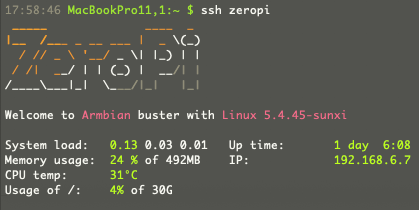
<p>购入 ZeroPi 半年多，吃灰居多，偶尔拿来构建 Docker 镜像，跑一些小测试等等，用处很单一。为防止记忆遗忘，记录一些备查。</p>

<p>ZeroPi 是友善出的一款开发板，对于没有接触过开发板的同学，它其实是一个比较好的上手玩具。当然，没有显示接口对于接触过 Linux 的同学来说，应该也没有什么问题。</p>

<p>Armbian 的安装没有什么难处，网上资料太多，这里只记录一些不是大众化的资料，其他的开发板使用 Armbian 的话也可以参考。</p>

<h3 id="uart">UART</h3>

<p>用于 Debug Port 的 UART 接驳好后，可以直接用 MacOS/Linux 的 screen 工具进入。UART 波特率为 115200bps。</p>

<div class="language-plaintext highlighter-rouge"><div class="highlight"><pre class="highlight"><code>screen /dev/tty.usbserial-XXXXXXXX 115200
</code></pre></div></div>

<p>串行端口号可以直接用 tab 补全。</p>

<h3 id="网络">网络</h3>

<p>Armbian 默认是启用 Network Manager 来管理网络，armbian-config 中的网络配置也是使用此工具，不过看了下 ZeroPi 的硬件，本着能省则省的态度，我还是直接使用自带的网络工具去配置了，编辑文件 /etc/network/interfaces</p>

<div class="language-plaintext highlighter-rouge"><div class="highlight"><pre class="highlight"><code>source /etc/network/interfaces.d/*
# Network is managed by Network manager
auto lo
iface lo inet loopback

allow-hotplug eth0
iface eth0 inet dhcp
</code></pre></div></div>

<p>不要自动配置 nameserver</p>

<div class="language-plaintext highlighter-rouge"><div class="highlight"><pre class="highlight"><code>dpkg-reconfigure resolvconf
# answer no
</code></pre></div></div>

<p>编辑文件 /etc/resolvconf/resolv.conf.d/head</p>

<div class="language-plaintext highlighter-rouge"><div class="highlight"><pre class="highlight"><code>nameserver your-dns
</code></pre></div></div>

<p>最后更新 nameserver</p>

<div class="language-plaintext highlighter-rouge"><div class="highlight"><pre class="highlight"><code>resolvconf -u
</code></pre></div></div>

<p>我有一个 N 年前购入的小米无线网卡，所以我增加了无线部分的设置，便于在断开网线的时候，也可以接入网络。编辑 /etc/network/interfaces</p>

<div class="language-plaintext highlighter-rouge"><div class="highlight"><pre class="highlight"><code>......
iface wlxfc0123456789 inet dhcp
wpa-conf /etc/wpa_supplicant/wpa_supplicant.conf
</code></pre></div></div>

<p>其中 /etc/wpa_supplicant/wpa_supplicant.conf 的配置可以使用如下命令写入</p>

<div class="language-plaintext highlighter-rouge"><div class="highlight"><pre class="highlight"><code>wpa_passphrase your-ssid your-password &gt;&gt; /etc/wpa_supplicant/wpa_supplicant.conf
</code></pre></div></div>

<h3 id="udev">udev</h3>

<p>总感觉 led 的颜色怪怪的，后来发现，因为是红色灯常亮，改一下，让蓝色灯常亮，有数据读写的时候红灯闪。这里我使用 udev 来实现。</p>

<p>led 的内核触发控制一般在 /sys/class/leds 中。</p>

<div class="language-plaintext highlighter-rouge"><div class="highlight"><pre class="highlight"><code>lrwxrwxrwx 1 root root 0 Jan  1  1970 nanopi:blue:status -&gt; ../../devices/platform/leds/leds/nanopi:blue:status
lrwxrwxrwx 1 root root 0 Jan  1  1970 nanopi:green:pwr -&gt; ../../devices/platform/leds/leds/nanopi:green:pwr
</code></pre></div></div>

<p>查看下属性的控制参数</p>

<p>绿色 led （颜色定义在设备树，实际红色，这里定义成绿色)</p>

<div class="language-plaintext highlighter-rouge"><div class="highlight"><pre class="highlight"><code>udevadm info --path=/sys/class/leds/nanopi\:green\:pwr --query=all --attribute-walk
......
  looking at device '/devices/platform/leds/leds/nanopi:green:pwr':
    KERNEL=="nanopi:green:pwr"
    SUBSYSTEM=="leds"
    DRIVER==""
    ATTR{trigger}=="none rc-feedback kbd-scrolllock kbd-numlock kbd-capslock kbd-kanalock kbd-shiftlock kbd-altgrlock kbd-ctrllock kbd-altlock kbd-shiftllock kbd-shiftrlock kbd-ctrlllock kbd-ctrlrlock usbport disk-activity disk-read disk-write ide-disk mtd nand-disk heartbeat cpu cpu0 cpu1 cpu2 cpu3 activity [default-on] panic mmc0 rfkill-any rfkill-none 0.2:07:link 0.2:07:1Gbps 0.2:07:100Mbps 0.2:07:10Mbps phy0rx phy0tx phy0assoc phy0radio rfkill0"
    ATTR{max_brightness}=="255"
    ATTR{brightness}=="0"
......
</code></pre></div></div>

<p>蓝色 led</p>

<div class="language-plaintext highlighter-rouge"><div class="highlight"><pre class="highlight"><code>udevadm info --path=/sys/class/leds/nanopi\:blue\:status --query=all --attribute-walk
......
  looking at device '/devices/platform/leds/leds/nanopi:blue:status':
    KERNEL=="nanopi:blue:status"
    SUBSYSTEM=="leds"
    DRIVER==""
    ATTR{brightness}=="255"
    ATTR{max_brightness}=="255"
    ATTR{trigger}=="none rc-feedback kbd-scrolllock kbd-numlock kbd-capslock kbd-kanalock kbd-shiftlock kbd-altgrlock kbd-ctrllock kbd-altlock kbd-shiftllock kbd-shiftrlock kbd-ctrlllock kbd-ctrlrlock usbport disk-activity disk-read disk-write ide-disk mtd nand-disk heartbeat cpu cpu0 cpu1 cpu2 cpu3 activity default-on panic [mmc0] rfkill-any rfkill-none 0.2:07:link 0.2:07:1Gbps 0.2:07:100Mbps 0.2:07:10Mbps phy0rx phy0tx phy0assoc phy0radio rfkill0"
</code></pre></div></div>

<p>参数都呈现了，那么直接创建文件来修改了 /etc/udev/rules.d/90-nanopi-leds.rules</p>

<div class="language-plaintext highlighter-rouge"><div class="highlight"><pre class="highlight"><code>KERNEL=="nanopi:blue:status", SUBSYSTEM=="leds", ACTION=="add", DRIVER=="", ATTR{trigger}="default-on"
KERNEL=="nanopi:green:pwr", SUBSYSTEM=="leds", ACTION=="add", DRIVER=="", ATTR{trigger}="mmc0"
</code></pre></div></div>

<p>手动测试下是否有错误</p>

<div class="language-plaintext highlighter-rouge"><div class="highlight"><pre class="highlight"><code>udevadm test /sys/class/leds/nanopi\:blue\:status
udevadm test /sys/class/leds/nanopi\:green\:pwr
</code></pre></div></div>

<p>重载下规则</p>

<div class="language-plaintext highlighter-rouge"><div class="highlight"><pre class="highlight"><code>udevadm control --reload
</code></pre></div></div>

<h3 id="蓝牙适配器">蓝牙适配器</h3>

<p>我也时而插一个蓝牙适配器到 USB 口上，使用 Filco 键盘打字。因为没有 GUI，所以直接 ssh 终端去做一些配置，过程如下：</p>

<div class="language-plaintext highlighter-rouge"><div class="highlight"><pre class="highlight"><code>$ bluetooth
[bluetooth]# power on                   # 激活蓝牙
[bluetooth]# agent KeyboardOnly
[bluetooth]# default-agent
[bluetooth]# pairable on                # 配对模式
[bluetooth]# scan on                    # 扫描
[bluetooth]# pair 11:22:33:44:55:66     # 配对键盘蓝牙地址
[bluetooth]# trust 11:22:33:44:55:66    # 键盘设备为可信
[bluetooth]# connect 11:22:33:44:55:66  # 进行连接
</code></pre></div></div>

<p>如果不是双模键盘，你可能需要另外一个键盘 ssh 进去配置……</p>

<h3 id="tmpfs">tmpfs</h3>

<p>不知为何，Armbian 的某些版本，默认没有将 /run/user/nums 挂载为 tmpfs，考虑了下 MicroSD 的速度，一些东西还是尽量放内存吧。</p>

<div class="language-plaintext highlighter-rouge"><div class="highlight"><pre class="highlight"><code>apt install libpam-systemd          # 嗯，装这个包，重启即可
</code></pre></div></div>

<p>另外，/tmp 默认也没有挂载为 tmpfs，修改下</p>

<div class="language-plaintext highlighter-rouge"><div class="highlight"><pre class="highlight"><code>ln -sf /usr/share/systemd/tmp.mount /etc/systemd/system/
systemctl enable tmp.mount
systemctl start tmp.mount
</code></pre></div></div>

<h3 id="iptables">iptables</h3>

<p>一般开发板内存都小的可怜，firewalld 尽管好用，内存占用也不小，本着能省即省的态度，还是用 iptables 吧</p>

<div class="language-plaintext highlighter-rouge"><div class="highlight"><pre class="highlight"><code>apt install iptables
</code></pre></div></div>

<p>写入 iptables 规则到文件 /etc/iptables.rule</p>

<div class="language-plaintext highlighter-rouge"><div class="highlight"><pre class="highlight"><code>*filter
:INPUT DROP [0:0]
:FORWARD DROP [0:0]
:OUTPUT ACCEPT [0:0]
-A INPUT -p icmp -m icmp --icmp-type echo-request -j ACCEPT
-A INPUT -m conntrack --ctstate RELATED,ESTABLISHED -j ACCEPT
-A INPUT -i lo -j ACCEPT
-A INPUT -p tcp -m conntrack --ctstate NEW -m tcp --dport 22 -j ACCEPT
-A INPUT -m conntrack --ctstate INVALID -j DROP
-A INPUT -j REJECT --reject-with icmp-host-prohibited
-A FORWARD -m conntrack --ctstate ESTABLISHED,RELATED -j ACCEPT
-A FORWARD -m conntrack --ctstate INVALID -j DROP
-A FORWARD -j REJECT --reject-with icmp-host-prohibited
COMMIT
</code></pre></div></div>

<p>载入规则</p>

<div class="language-plaintext highlighter-rouge"><div class="highlight"><pre class="highlight"><code>iptables-restore &lt; /etc/iptables.rule
</code></pre></div></div>

<p>安装 iptables-persistent 使之开启自启动</p>

<div class="language-plaintext highlighter-rouge"><div class="highlight"><pre class="highlight"><code>apt install iptables-persistent
</code></pre></div></div>

<h3 id="nftables">nftables</h3>

<p>也可以直接使用 nftable，写入配置文件 /etc/nftables.conf</p>

<div class="language-plaintext highlighter-rouge"><div class="highlight"><pre class="highlight"><code>#!/sbin/nft -f
flush ruleset

table inet filter {
    chain input {
        type filter hook input priority 0; policy drop;
        ct state invalid counter drop
        ct state { established, related } counter accept
        iif lo accept

        ip protocol icmp icmp type { destination-unreachable, echo-request, router-solicitation, router-advertisement, time-exceeded, parameter-problem } counter accept

        ct state new tcp dport { ssh } counter accept

        counter reject with icmp type host-prohibited
    }

    chain forward {
        type filter hook forward priority 0; policy drop;
        ct state invalid counter drop
        ct state { established, related } counter accept
        counter reject with icmp type host-prohibited
    }

    chain output {
        type filter hook output priority 0; counter; policy accept;
    }
}
</code></pre></div></div>

<p>载入规则</p>

<div class="language-plaintext highlighter-rouge"><div class="highlight"><pre class="highlight"><code>nft -f /etc/nftables.conf
</code></pre></div></div>

<h3 id="swap">swap</h3>

<p>开发板基本不是 mmc 就是 tf，读写速度堪忧，在上面挂载 swap 性能极低，虽然 debian 自带了 zram-tools 工具去创建 zram 设备，但是 armbian 也自己维护了一个工具，默认就安装好，查看下</p>

<div class="language-plaintext highlighter-rouge"><div class="highlight"><pre class="highlight"><code>zramctl
free -h
</code></pre></div></div>

<p>本质是内存中动态划出一个空间用做 swap，性能一下子就上去了，如此，可以大胆的如下操作了，顺便将 bbr 也打开吧 /etc/sysctl.d/99-custom.conf</p>

<div class="language-plaintext highlighter-rouge"><div class="highlight"><pre class="highlight"><code>vm.swappiness = 100
net.core.default_qdisc = fq
net.ipv4.tcp_congestion_control = bbr
</code></pre></div></div>

<p>载入</p>

<div class="language-plaintext highlighter-rouge"><div class="highlight"><pre class="highlight"><code>sysctl -p /etc/sysctl.d/custom.conf
</code></pre></div></div>

<p>参考资料：</p>

<ul>
  <li><a href="http://wiki.friendlyarm.com/wiki/index.php/ZeroPi">http://wiki.friendlyarm.com/wiki/index.php/ZeroPi</a></li>
  <li><a href="https://docs.armbian.com">https://docs.armbian.com</a></li>
</ul>]]></content><author><name></name></author><summary type="html"><![CDATA[]]></summary></entry></feed>